
Score Editor in ComfyTV
What this node does
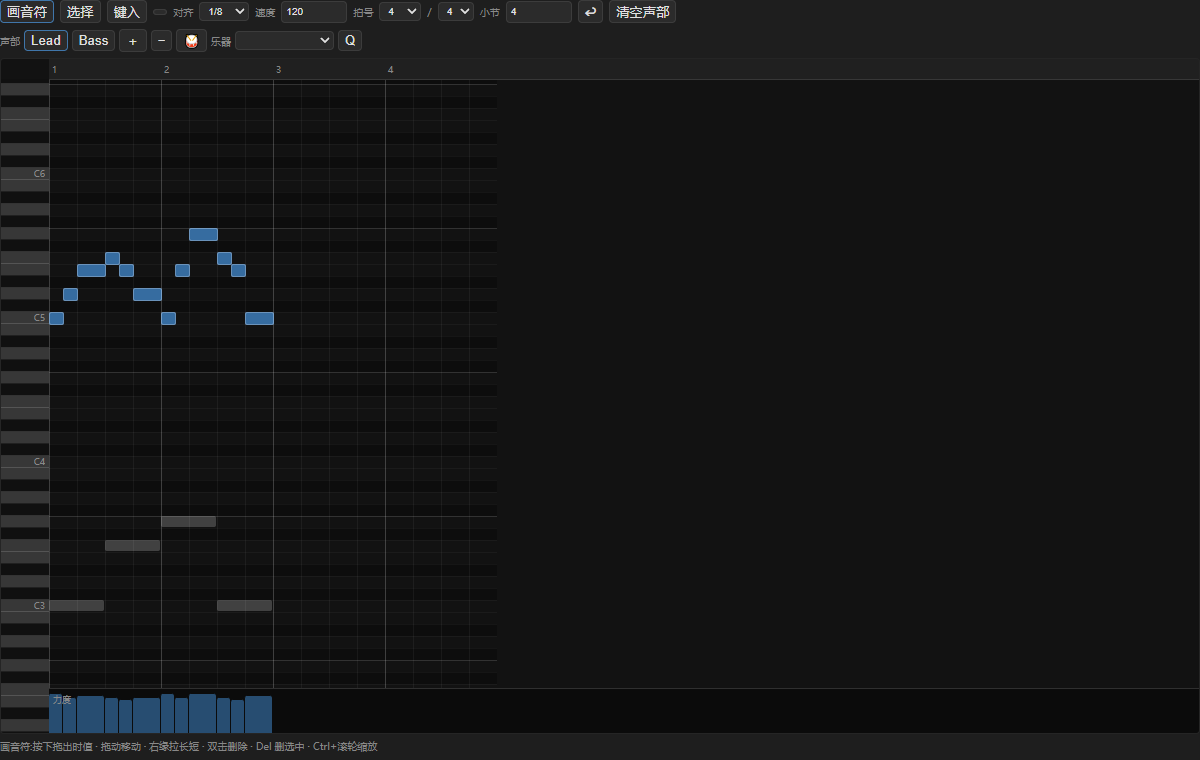
Score Editor is a full in-browser piano roll for composing directly on the canvas. Instead of writing MusicXML by hand (as with the Score stage), you draw notes on a grid measured in beats and bars, organize them into up to four named parts (each with its own instrument or a percussion mode), and set the tempo and time signature. Everything you draw is stored on the node. Press ▶ Run to convert your roll into MusicXML on the backend; thescore
output is a COMFYTV_TEXT MusicXML document ready for Score Performer,
Score Synth, or any music stage. Running with an empty roll fails with “the
piano roll is empty”.
You can also import a wired score (score input, COMFYTV_TEXT) into the roll
to edit an existing piece.
The editor
The card is a toolbar-plus-piano-roll. From top to bottom: Tool row.- Draw / Select / Step — the three editing modes.
- Draw: click-drag on the grid to create a note; the drag sets its length, and the note beeps as you place it.
- Select: drag a marquee to select notes (Shift adds to the selection); click a note to grab it.
- Step: enter notes one at a time with the keyboard at a moving cursor — press a letter key A–G to insert that pitch, 0 or Space for a rest, Backspace to delete the last step, and arrow keys to transpose (Up/Down, Shift for octaves) or move the cursor (Left/Right). In Step mode a duration picker appears (1, 1/2, 1/4, 1/8, 1/16, 1/32) plus a dotted toggle (·); a yellow cursor line marks the insert point.
- Play (▶ / ■) — plays the whole roll with a built-in oscillator/drum synth; a green playhead sweeps across and the view auto-scrolls to follow.
- Snap — grid snapping: 1/4, 1/8, 1/16, 1/32, or free.
- Tempo — BPM (20–400).
- Time sig — beats-per-bar (1–12) over beat-type (2, 4 or 8).
- Bars — total length in bars (1–256).
- Undo (↩), Clear part, and (when a score is wired) Import score.
- Buttons for each part (up to four); click to make one active, double-click to rename. + / − add or remove parts.
- 🥁 Percussion toggles the active part to a drum lane — the keyboard on the left switches to General MIDI drum names instead of pitches.
- Instrument — a General MIDI instrument dropdown for the active (non-percussion) part.
- Q Quantize snaps the selected notes to the grid.
- Import status/warnings appear here (e.g. skipped percussion on import).
- move by dragging the body,
- resize by dragging the left or right edge handle,
- delete by double-clicking,
- multi-select and drag/resize together. Notes in other (inactive) parts show as dim “ghost” blocks so you can align against them. A velocity lane runs along the bottom — drag across it to paint the loudness of the notes under the cursor.
Workflow / step by step
- Set Tempo, Time sig and Bars for the piece.
- Pick a Snap value; choose or add a part and set its Instrument (or toggle 🥁 for drums).
- Draw notes (or use Step mode to type them in); adjust length with the edge handles.
- Add more parts for other instruments; use the ghost notes to line them up.
- Shape dynamics in the velocity lane; press Play to audition.
- Press ▶ Run to emit the MusicXML score, then wire it to Score Performer / Score Synth.
Inputs and outputs
The roll itself is stored on the node in a hidden
notes_json field, so your
work is saved with the workflow.
Tips
- Step mode is the fastest way to enter melodies precisely: set the duration, then type note letters — no dragging.
- Use the ghost notes from other parts as a reference when writing counterpoint or harmony.
- Percussion parts use drum names on the keyboard; importing a score skips percussion parts (you’ll get a warning if any were dropped).
- Nothing reaches downstream until you press ▶ Run — the roll is the editor, the run emits the score.
Related nodes
- Score — the MusicXML-first alternative (paste XML instead of drawing).
- Score Performer — performs your exported score with feel and outputs MIDI.
- Score Synth — renders it to audio.
- MIDI Editor — the seconds-domain piano roll for MIDI files (not MusicXML).
- Bridge — convert to/from native ComfyUI types. See https://github.com/jtydhr88/ComfyTV/blob/main/docs/bridges.md